Carry accessibility questions from web to desktop
Trace a modal dialog through focus, keyboard and accessibility-tree checks in Chromium, then define the remaining Electron and screen-reader checks.

Carry the interaction contract across platforms, then check how each platform delivers it. A dialog that looks identical in a browser and an Electron window can still differ in keyboard behavior, focus restoration or what assistive technology receives. Sharing HTML is a useful starting point; it is not evidence that every supported desktop combination behaves the same way.
For a small learning exercise, I prefer an export-options dialog with one checkbox and a Done button. It has enough behavior to inspect opening, keyboard movement, closing and recovery without adding asynchronous file operations. If you know basic HTML and JavaScript and are extending a frontend interface into a desktop app, this lesson gives you a small first exercise. The example changes a preview option only; it does not export a file.
Write the behavior before selecting a component
The WAI-ARIA modal dialog pattern describes a coherent interaction: opening moves focus inside, Tab and Shift+Tab cycle through the dialog, Escape closes it, and closing normally returns focus to the invoking element. Content outside a modal dialog is inert. A visible button also provides a way to close it without requiring knowledge of a keyboard shortcut.
Apply those rules to this example. “Export options” opens the dialog. The first control is “Include notes”, because that is the choice the person came to make. Done closes the dialog. The dialog has a visible title and a short description that explains the checkbox’s purpose. After closing, focus returns to Export options so the person has a predictable place to continue.
Now add one exception before implementation: the invoking button might no longer exist. The APG pattern permits moving focus to another element that provides a logical continuation. In this exercise, the Export preview heading is that fallback. Sending focus to an arbitrary first button or leaving it lost at the document body would fail to explain where the person is in the workflow.
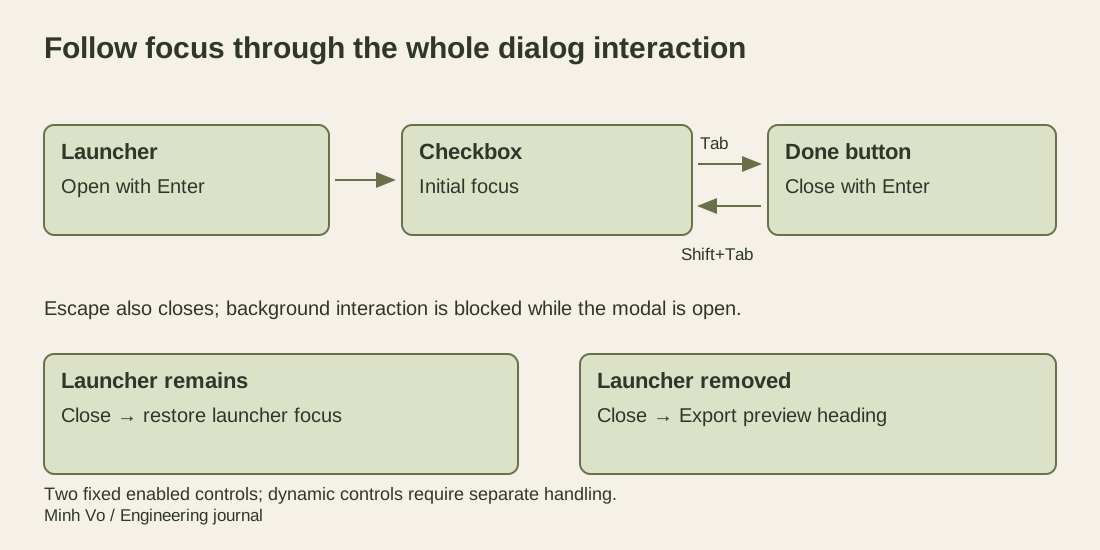
This map is a reviewable contract. A screenshot of the dialog does not show whether any of its arrows work.
Start with a native HTML dialog
MDN’s dialog reference explains the distinction between showModal() and merely showing a dialog with show() or the open attribute. showModal() establishes modal behavior, including an inert background and implicit modal accessibility semantics. Adding aria-modal="true" to an ordinary panel does not implement that behavior by itself.
The example labels the dialog with its heading through aria-labelledby and links one short explanatory paragraph with aria-describedby. That description is appropriate because it is simple. For a long dialog containing lists or tables, the APG guidance recommends preserving their structure rather than having a screen reader announce everything as one description. Initial focus might then belong on a static heading inside the dialog, depending on the task.
The following complete page uses two fixed, enabled controls. It adds a small keyboard handler at their boundaries to make the exercise’s Tab loop explicit. It leaves the browser’s ordinary Escape behavior in place and includes a visible close button.
<!doctype html>
<html lang="en">
<meta charset="utf-8">
<title>Export options exercise</title>
<style>
  body { font: 20px sans-serif; padding: 2rem; }
  button, input { font: inherit; margin: .5rem; }
  dialog { border: 2px solid #344333; padding: 1.5rem; }
  dialog::backdrop { background: rgb(0 0 0 / 50%); }
  :focus-visible { outline: 3px solid #1759b1; outline-offset: 3px; }
</style>
<h1 id="section" tabindex="-1">Export preview</h1>
<button id="open" type="button">Export options</button>
<button id="outside" type="button">Outside action</button>
<dialog id="options" aria-labelledby="title" aria-describedby="help">
  <h2 id="title">Export options</h2>
  <p id="help">Choose whether this preview includes notes.</p>
  <label><input id="includeNotes" type="checkbox" autofocus>Include notes</label>
  <button id="close" type="button">Done</button>
</dialog>
<script>
  const openButton = document.querySelector('#open');
  const dialog = document.querySelector('#options');
  openButton.addEventListener('click', () => dialog.showModal());
  document.querySelector('#close').addEventListener('click', () => dialog.close());
  const firstControl = document.querySelector('#includeNotes');
  const lastControl = document.querySelector('#close');
  dialog.addEventListener('keydown', (event) => {
    if (event.key !== 'Tab') return;
    if (event.shiftKey && document.activeElement === firstControl) {
      event.preventDefault();
      lastControl.focus();
    } else if (!event.shiftKey && document.activeElement === lastControl) {
      event.preventDefault();
      firstControl.focus();
    }
  });
  dialog.addEventListener('close', () => {
    if (!openButton.isConnected) document.querySelector('#section').focus();
  });
</script>
</html>
The heading’s tabindex="-1" allows the fallback handler to focus it programmatically without adding it to the ordinary Tab sequence. The dialog itself does not receive a custom tabindex. Its checkbox has an explicit label, and autofocus selects that control when the dialog opens.
The two-control keyboard handler is intentionally narrow. If controls become hidden, disabled, inserted or removed, that fixed first/last assumption no longer describes the dialog. Update the implementation and its tests together, or use a well-maintained component that handles the required dynamic behavior. Copying this handler into a large form without reconsidering its assumptions would create a new focus problem.
Verify behavior instead of inferring it from markup
The exact page was exercised in Chromium headless shell 147.0.7727.15. Enter on the launcher focused the checkbox. Repeated Tab and Shift+Tab movements followed the two-control loop. Space changed the checkbox, Escape closed the dialog and returned focus to the launcher, and Enter on Done also closed it. Reopening retained the checkbox’s current in-page state.
Two background checks were separate from that keyboard loop. Attempting to focus Outside action while the modal was open did not move focus there. A pointer click directed at that background button did not invoke its handler. These observations check modality in this browser; they do not demonstrate every possible input method or browser implementation.
The browser accessibility tree reported a dialog named Export options, the short description, modal state and a checkbox named Include notes. Those are useful checks of the information exposed by this engine. They are not a recording of a screen reader announcing the dialog, nor proof that a user can complete the task with a particular assistive-technology setup.
Finally, the launcher was removed while the dialog was open. Escape closed it and the fallback moved focus to the Export preview heading. That case exercises the handler’s actual purpose. A test that only opens and closes the unchanged page would never reach it.
Repeat the task inside the desktop application
Electron’s accessibility documentation notes that its accessibility concerns resemble web concerns because both use HTML. Electron also integrates with platform assistive technology and automatically enables accessibility features when such technology is present. Its manual accessibility-support setting does not override the user’s system assistive utilities.
That integration still needs observation in the installed application. Test the same opening, checkbox, closing and fallback sequence in the Electron version and operating system you support. Check whether application menus or shortcut handlers consume a key before the dialog receives it. Confirm that closing the dialog leaves the application window and the intended control ready for the next action.
Then repeat with the chosen screen reader. Listen for the dialog’s name, the checkbox’s label and state, and the location reached after closing. Check whether the short description helps or creates repetitive speech. Keep the actual browser or Electron version, OS, screen reader and configuration with the result so another person can reproduce the observation.
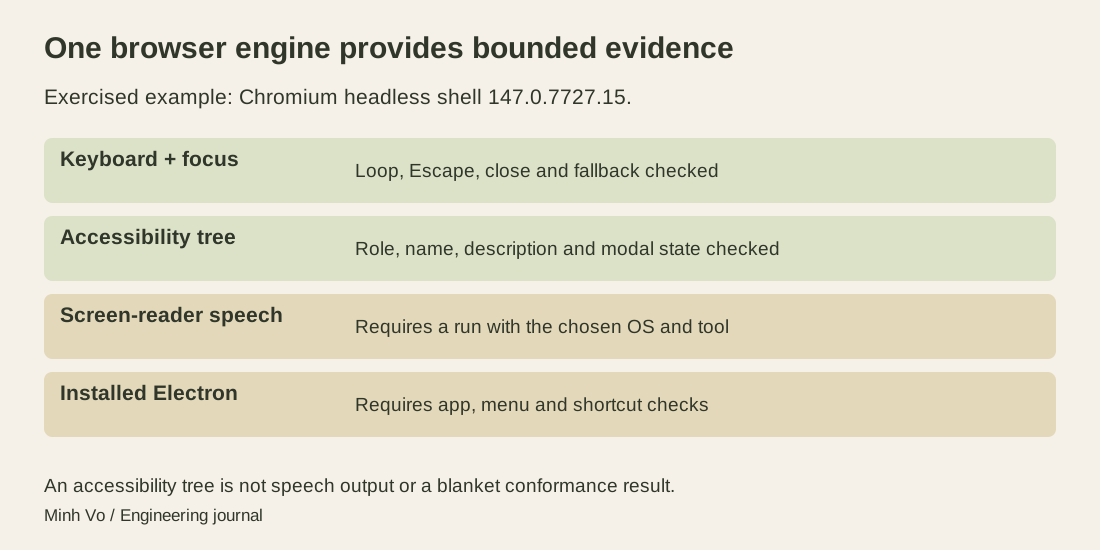
No Electron process or operating-system screen reader was run for this example. The browser checks establish a useful baseline for the proposed desktop checks, not a blanket accessibility-conformance result.
Change the workflow and review focus again
Suppose the dialog later confirms a destructive action. The checkbox-first choice from this preview exercise should not automatically survive that change. The APG guidance suggests considering the least destructive action for initial focus when an operation is difficult to reverse. The correct focus target follows the decision the user faces, not a universal “always focus the first field” rule.
Likewise, a dialog that creates a new row might logically move focus into that row after closing rather than back to its launcher. Explain that continuation and verify it. Returning to the launcher is a helpful default, but it should not force the person to navigate away from the result they just created.
Use this exercise to build a short cross-platform record: opening target, accessible name, keyboard path, close actions and return target. Add the actual results for each supported environment and leave untested combinations explicit. That record helps transfer frontend accessibility knowledge into desktop work while keeping the evidence as specific as the behavior.