Flexbox for a toolbar with one flexible child
Relax the document wrapper’s automatic flex minimum, inspect action containment, and add wrapping plus a keyboard-accessible full filename.

A long document title can push a toolbar’s buttons out of view even when the title’s flex item has flex-shrink: 1. The item may stop shrinking at its automatic minimum size. Set an explicit minimum on the element that participates in the flex layout, then decide how readers should see the text that no longer fits.
If you know basic CSS widths, this is a useful next debugging case. The example is a fictional recording interface with a filename and two actions. It uses horizontal writing and an ordinary row direction. The buttons demonstrate layout and focus; the example does not implement renaming or exporting a file.
Find the direct flex item
The filename sits inside a .document wrapper. That wrapper and .toolbar-actions are the two direct children of the flex container. The heading inside the wrapper is not a direct flex item of .toolbar.
<section class="editor" aria-label="Recording controls">
  <div class="toolbar">
    <div class="document">
      <h2 class="toolbar-title">quarterly-recording-review-with-a-very-long-filename.webm</h2>
    </div>
    <div class="toolbar-actions">
      <button type="button">Rename</button>
      <button type="button">Export</button>
    </div>
  </div>
  <details class="file-name">
    <summary>Read the full filename</summary>
    <p>quarterly-recording-review-with-a-very-long-filename.webm</p>
  </details>
</section>
.editor {
max-inline-size: 40rem;
margin-inline: auto;
}
.toolbar {
display: flex;
align-items: center;
gap: 1rem;
}
.document {
flex: 1 1 auto;
min-inline-size: 0;
}
.toolbar-title {
margin: 0;
font-size: 1.125rem;
overflow: hidden;
text-overflow: ellipsis;
white-space: nowrap;
}
.toolbar-actions {
display: flex;
gap: 0.5rem;
flex: 0 0 auto;
}
.toolbar-actions button {
font: inherit;
padding: 0.625rem 0.875rem;
min-block-size: 44px;
}
.file-name {
margin-block-start: 1rem;
overflow-wrap: anywhere;
}
button:focus-visible,
summary:focus-visible {
outline: 3px solid #696d45;
outline-offset: 3px;
}Here min-inline-size controls the horizontal minimum because the writing mode is horizontal. The wrapper can grow into unused space and shrink under pressure. The action group does neither: its two buttons and internal gap determine its width. The heading clips text inside the width the wrapper receives.
Remove the wrapper’s explicit minimum and its default auto can preserve the content-based minimum contributed by the unwrapped filename. Increasing flex-shrink does not remove that lower bound. The Flexbox specification’s automatic-minimum section defines this behavior, including the effect of the flex item’s overflow value. MDN’s min-width reference also explains that automatic minimums depend on layout context.
The location of clipping matters. In this example, overflow: hidden belongs to the nested heading. It does not change the wrapper’s own overflow value. Putting clipping on a direct flex item can affect its automatic minimum, but clipping a child is not a reliable substitute for setting the parent’s intended constraint. Inspect the actual flex boundary before moving declarations between selectors.
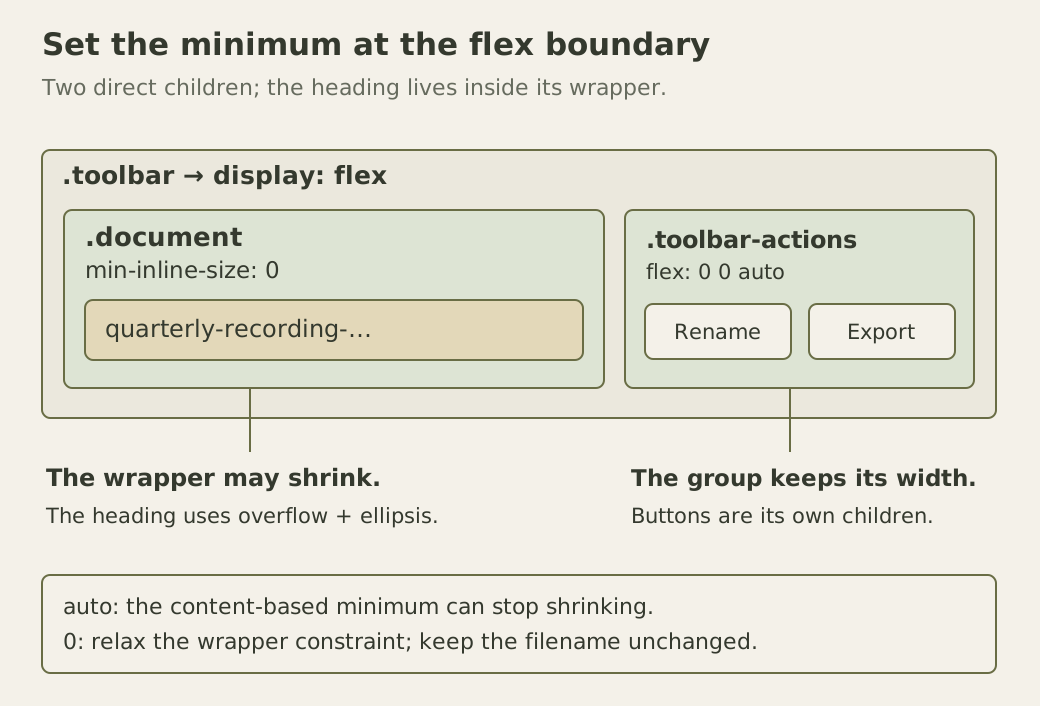
The figure separates allocation from text presentation. A lower minimum allows a smaller wrapper; the heading’s overflow rules decide what is painted inside it.
Compare the automatic and explicit minimum
Place the example in a container wide enough for both buttons plus the outer gap, but narrower than the full filename and buttons together. Run this in the console. Each row changes only the wrapper’s minimum, records its width and the action group’s right edge relative to the toolbar, then restores the original inline styles.
const toolbar = document.querySelector(".toolbar");
const documentItem = document.querySelector(".document");
const actions = document.querySelector(".toolbar-actions");
const originalStyle = documentItem.style.cssText;
const rows = ["auto", "0px"].map((minimum) => {
  documentItem.style.minInlineSize = minimum;
  const bar = toolbar.getBoundingClientRect();
  const item = documentItem.getBoundingClientRect();
  const buttons = actions.getBoundingClientRect();
  return {
    minimum,
    itemWidth: item.width,
    actionsRight: buttons.right - bar.left,
    available: bar.width,
  };
});

documentItem.style.cssText = originalStyle;
console.table(rows);
With auto, the action group’s right edge can exceed the available width. With zero, the wrapper can yield enough space for the actions to fit under the stated conditions. Exact pixel values depend on fonts and labels, so compare containment instead of expecting an English screenshot’s button width. Run this before adding the wrapping rules later in the article; those rules deliberately change the layout being diagnosed.
The console only observes rectangles. It does not prove that a filename remains identifiable, that a menu works or that every translated label fits. A visually clipped heading still contains its complete DOM text, but that alone does not make the full name available to someone looking at the screen.
Shrink factors do not split the loss equally
A shrink factor is weighted by the item’s flex base size. Consider a separate simple row with two items whose bases are 300 and 100 pixels, both with shrink factor one, zero minimums, and no gaps, padding or borders. In a 320-pixel row, the total basis exceeds the available space by 80. The scaled factors are in a three-to-one ratio, so the items lose 60 and 20 pixels. Their resulting widths are 240 and 80.
That example follows the flexible-length resolution algorithm. Minimum and maximum constraints can clamp a result and force another distribution pass, so a ratio calculated from the bases is not the entire algorithm. Changing to flex: 1 1 0 changes the basis; it still does not erase an automatic minimum.
Our toolbar avoids sharing the shrink loss between the wrapper and action group by making the latter nonshrinking. This makes the intended priority clear. It also creates a hard limit: if the action group plus the outer gap is wider than the toolbar, even a zero-width document wrapper cannot make that single row fit.
Give the component permission to use more than one row
Add these rules after the first stylesheet for a layout that can respond to its actual available width. The document’s preferred basis is a design choice of 14rem. It can still shrink when it occupies a line alone. The outer container can wrap the action group onto another line, and the action group can wrap its own buttons if necessary.
.toolbar {
  flex-wrap: wrap;
}

.document {
  flex-basis: 14rem;
}

.toolbar-actions {
  flex: 0 1 auto;
  min-inline-size: 0;
  flex-wrap: wrap;
}

.toolbar-actions button {
  max-inline-size: 100%;
  white-space: normal;
  overflow-wrap: anywhere;
}
Flex line collection considers items’ hypothetical outer sizes before resolving their flexible lengths on each line. Therefore wrapping is not merely a final emergency step after squeezing the filename to nothing. A preferred basis can move the actions to the next line while enough width still exists for a useful title. The Flexbox line-collection rules describe that order.
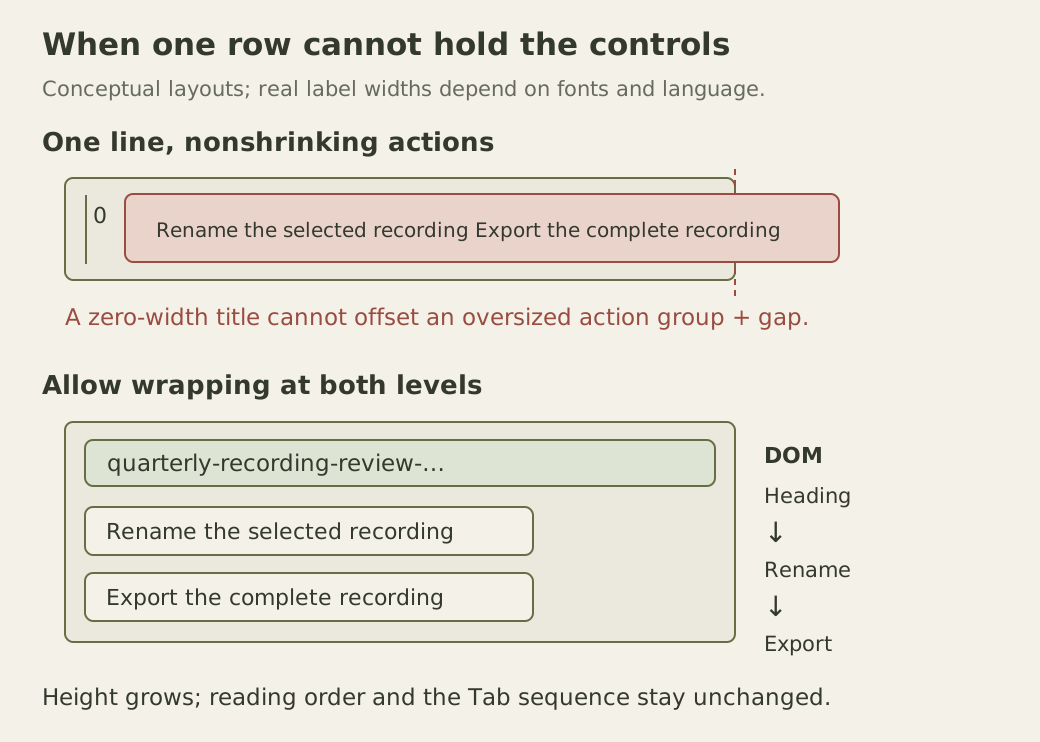
These rules use the component’s available space, so they also respond when a sidebar narrows inside a wide viewport. They preserve DOM order instead of visually moving controls with order or a reversed flex direction. The document heading remains before the controls, and Rename remains before Export when the buttons form separate rows.
No fixed basis guarantees a usable layout at every imaginable size. Very large text, extensive padding, or an extremely narrow host still requires inspection. Allow height to grow, test localized labels, and avoid hiding the toolbar’s overflow merely to remove a page scrollbar. A hidden last action is a functional loss, not a successful layout.
Keep the full name and keyboard path available
The ellipsis is a presentation policy, not a change to the filename. MDN’s text-overflow reference explains that the property does not create overflow itself; clipping and the no-wrap policy supply that situation. At extremely small widths, even the ellipsis can be clipped. If comparing filenames is the main task, a wrapping title may be preferable to truncation.
The example supplies an explicit “Read the full filename” disclosure below the row. Its full text can wrap and be selected. The native details element lets a keyboard user focus the summary and press Space to reveal it. A hover-only tooltip would leave that path unavailable. In an application, keep the displayed heading and full-name view derived from the same filename value so a rename cannot update only one copy.
The CSS class name toolbar does not create an ARIA toolbar widget. These two buttons use ordinary Tab navigation. The APG toolbar pattern describes additional focus management and arrow-key navigation for that composite widget. Adding its role alone would not implement that behavior.
For a final check, use both a short title and the supplied long filename, narrow the host independently of the viewport, and enlarge text to 200%. Tab to both actions, then open the full-name disclosure. The focused control and its outline should remain visible, and the full filename should remain readable without horizontal page scrolling. Repeat with longer translated action labels before treating the component as ready.