Give a checkout form names the browser understands
Connect visible labels, submission names and autocomplete tokens in a shipping form that respects browser behavior and international address formats.

A checkout form needs several kinds of names. A visible label tells a person what to enter. The control’s name identifies a submitted value. An autocomplete token tells the browser what that value means. These names can differ, but they should describe the same piece of information.
If you are building your first checkout, start with the browser’s form model before adding custom components. A styled input without a label or submission name can look complete while losing information for readers or for the server. The following address example is fictional and deliberately small enough to inspect.
Three relationships in one field
<form action="/checkout/address" method="post">
  <fieldset>
    <legend>Shipping address</legend>
    <label for="shipping-name">Full name</label>
    <input id="shipping-name" name="shippingName"
           autocomplete="shipping name" required>

    <label for="shipping-address">Street address</label>
    <textarea id="shipping-address" name="shippingAddress"
              autocomplete="shipping street-address"
              required></textarea>

    <label for="shipping-city">City or locality</label>
    <input id="shipping-city" name="shippingCity"
           autocomplete="shipping address-level2" required>
  </fieldset>
  <button type="submit">Continue</button>
</form>
The label’s for value points to an input ID. Clicking that label can focus the associated control, and assistive technology can use the relationship to compute its accessible name. The input ID must be unique in the document. Copying this component twice without changing IDs can connect a label to the wrong instance.
The submission name has a different purpose. When the form constructs its submitted entries, the successful controls contribute values under their names. Renaming an ID for layout reasons should not silently rename the server’s data contract. Conversely, changing the submission name does not repair a broken label association.
Autocomplete provides a semantic hint. The HTML autofill specification defines tokens such as shipping, billing, name, street-address, and address-level2. A browser can recognize those roles more reliably than an arbitrary application field name such as shippingCity.
Keep the human label visible
A placeholder is a poor replacement for a label. It disappears as a person types, leaving them to remember what the field requested. It can also look like an entered value or have insufficient contrast. Put the name of the field above or beside the control and reserve a placeholder for a short optional example when one is helpful.
Instructions belong near the relevant control. If a delivery address needs an apartment number, explain that without assuming every address has one. A separate help element can be associated through aria-describedby. This adds a description while leaving the field’s name concise.
The distinction matters when errors arrive. A field still needs its label after an error message appears. Replacing “Street address” with “This is required” removes the information the person needs to fix it. Keep the label and add a specific recovery message.
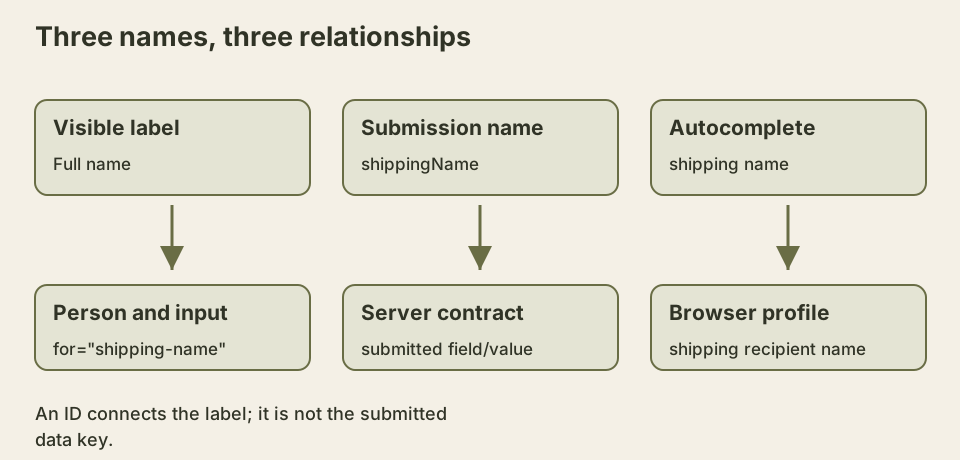
Each arrow in the diagram has a different destination. Treating all three attributes as interchangeable often works during a quick visual demo and fails once the component is reused.
Multiple addresses need separate sections
Shipping and billing tokens distinguish two ordinary address groups. A form that ships two gifts to different recipients needs another level of grouping. The autofill grammar supports a section token, such as section-blue or section-red, before the address-purpose token.
For example, the street-address controls can use autocomplete values of “section-blue shipping street-address” and “section-red shipping street-address”. The section identifier groups related controls; it does not appear as a human label. Each gift still needs a fieldset and legend that a person can understand.
Do not invent token order or concatenate arbitrary business identifiers into the grammar without checking it. Unknown values can prevent the browser from interpreting the hint as intended. Keep the browser semantics small even when your server schema is more elaborate.
International addresses change the questions
Address formats vary. A form designed around a mandatory US state and five-digit ZIP code does not become international by renaming its heading. Ask which countries the service actually supports, then choose fields and validation rules accordingly. A locality label can adapt to the selected country while the underlying autocomplete purpose remains useful.
A full-name field also avoids imposing a universal first-name/last-name structure. Some systems genuinely require separate parts, but that requirement should come from a documented business or integration constraint. It should not come from assuming every name follows one pattern.
The W3C Internationalization discussion of personal names around the world gives concrete reasons to question these assumptions, including ordering and the number of name parts. Treat the person’s supplied name as text, preserve its characters, and avoid silently deciding which part must be their family name. A checkout needs the information required for delivery, not a universal model of identity.
Postal codes are identifiers rather than quantities. Treating them as numbers can lose leading zeros, and numeric inputs exclude letters used in many countries. A text control, with an appropriate keyboard hint only where justified, preserves the submitted characters. Client validation should reflect the supported address system and leave room for valid edge cases.
Autofill is assistance, not a guarantee
Browsers, password managers, user settings, and stored profiles influence autofill behavior. A valid token does not guarantee that every environment will fill the field. The form must remain usable with manual input and with assistive technology. It must also tolerate a person replacing an autofilled value.
Inspect the form by clicking each label, navigating with the keyboard, and submitting known fictional values to a local test endpoint. Confirm the server receives the expected names and that errors preserve those values. Then test both shipping and billing groups with browser autofill where available.
The example deliberately omits tax, payment, and server validation logic. Those are separate contracts. Getting field names right gives those later steps a dependable input structure; it does not prove that an address exists or that a delivery can be completed.
Inspect the values that actually leave the form
You can test submission names before a backend endpoint exists. Put the example form in a local page, then run this script after it. The values are fictional test data. Constructing FormData reads the form’s entry list; it does not submit a request or run interactive constraint validation.
const form = document.querySelector('form');
form.elements.namedItem('shippingName').value = 'Example Recipient';
form.elements.namedItem('shippingAddress').value = '12 Sample Lane';
const city = form.elements.namedItem('shippingCity');
city.value = 'Example City';

const baseline = new FormData(form);
console.assert(baseline.get('shippingName') === 'Example Recipient');
console.assert(baseline.get('shippingCity') === 'Example City');

city.disabled = true;
console.assert(new FormData(form).has('shippingCity') === false);
city.disabled = false;
city.readOnly = true;
console.assert(new FormData(form).get('shippingCity') === 'Example City');
city.readOnly = false;
Disabling a field changes more than its appearance. In this example its entry disappears from FormData. A readonly text input remains represented, even though the reader cannot edit it normally. The entry-list construction algorithm specifies which controls contribute entries. Other control types have additional rules; unchecked checkboxes, for example, do not contribute their normal name/value entry.
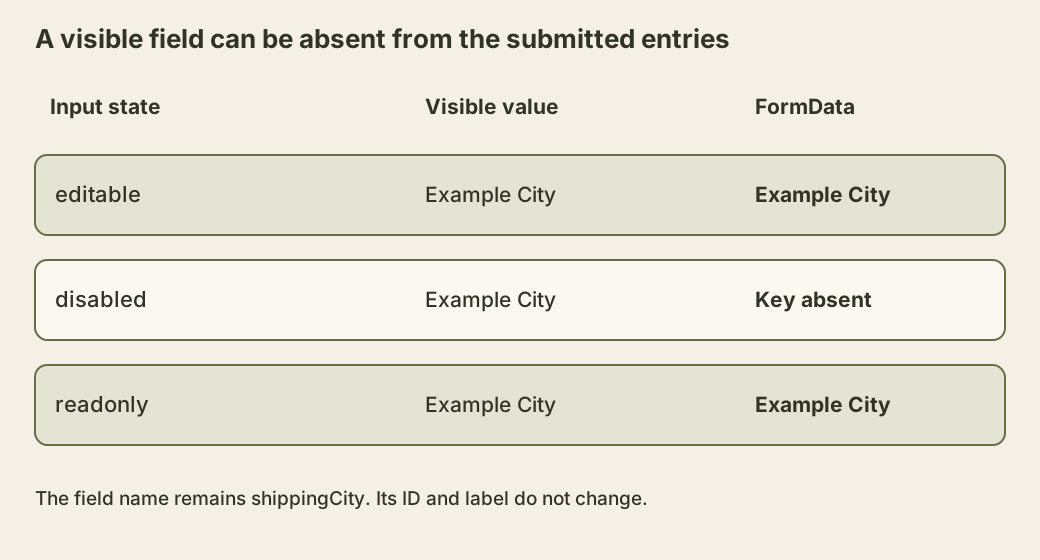
The figure compares the same field in three states. Its ID, label and autocomplete value can remain unchanged throughout. This is why a screenshot showing the right text in the input cannot prove that the server will receive that text. Inspect the entry list and, once an endpoint exists, the actual request body.
Do not use readonly or disabled as a security boundary. A caller can send their own request without using your page. The server must validate the fields it accepts, whether the browser presents them as editable, readonly or hidden. The browser attributes communicate interaction rules to a cooperative client; they do not grant authority over an order.
For a final check, remove the city control’s name while retaining its ID, label and entered value. Predict the result before constructing FormData again. Restore the name and duplicate it on a second control: use getAll to inspect both values rather than assuming one name always maps to one scalar. Whether duplicate values are valid belongs to the server contract. Identifying that decision early prevents a later form-library change from silently discarding one recipient’s information.